
NEXUS AI / ASSISTANT
Designers ask. The agent acts inside Smallworld.
Assistant is an AI agent for GE Smallworld that goes past answering questions. It executes actions directly within Smallworld, pulls third-party data into the Smallworld environment through Gateway, supports designers building automated designs, and validates network integrity and quality before work is posted.
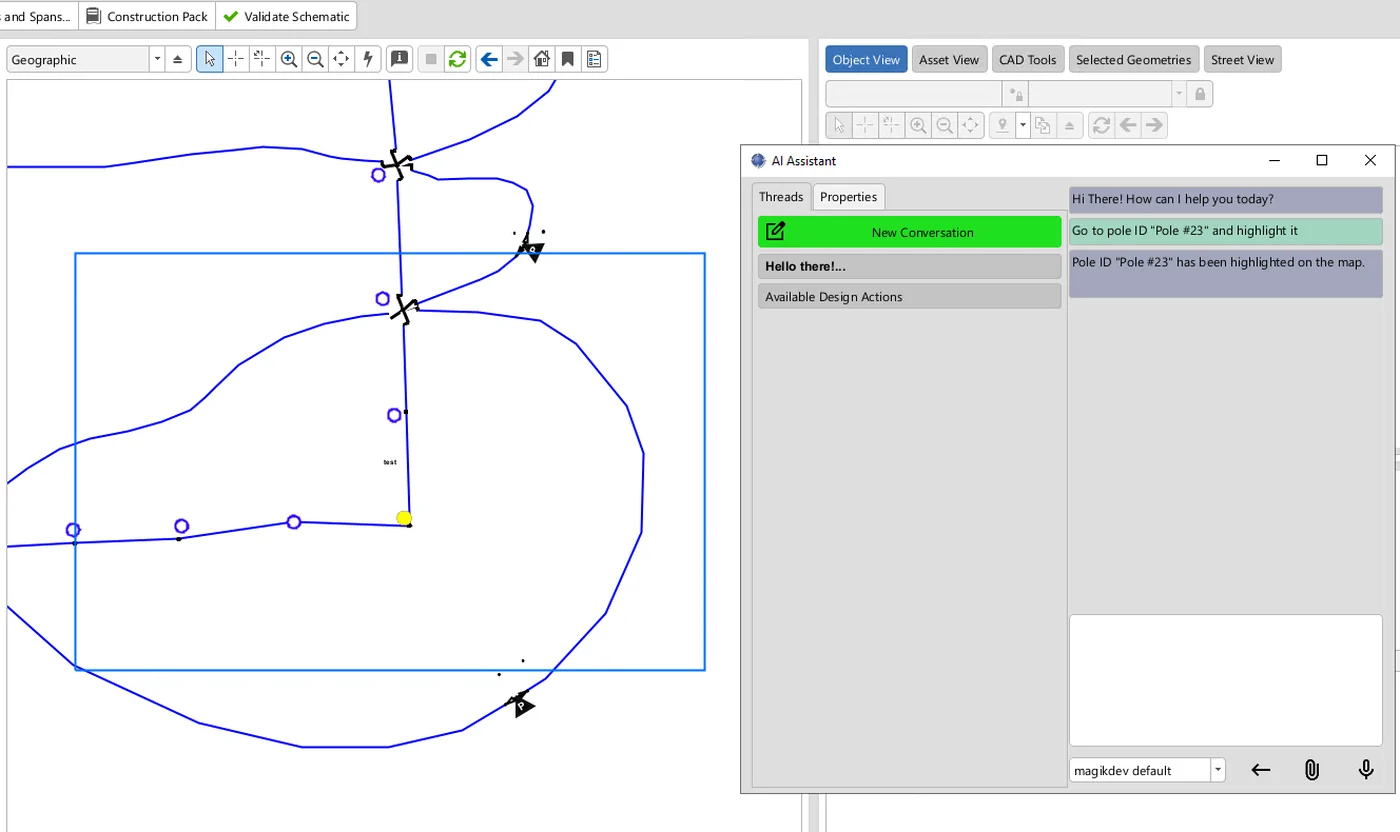
Assistant sits inside the Electric Office window a designer already has open, so there is no second tool and nothing to retype. Here it has been asked to find a pole and show it, and the pole is highlighted on the design a moment later — the answer is the map changing, not a paragraph explaining how to change it yourself.
A design package arrives and somebody types it in. Five hundred poles, one at a time, in the client, against standards held partly in a manual and partly in people's heads. The errors that creep in are found later, by someone else, in a version that has already moved on — and correcting them costs more than entering them did.
-
Ask in plain language
A designer describes what they need, against the design package in front of them, in the words they would use to a colleague.
-
The agent acts in Smallworld
It executes the action inside the GIS rather than handing back a set of instructions for somebody to retype.
-
Connected data comes with it
Through Gateway, information from other systems is available in the Smallworld environment while the work is being done, instead of in a second window.
-
Network integrity is checked
The agent validates connectivity and data quality against the rules you already enforce, at the point the work is created.
-
The work is posted once it passes
What reaches the production version has been through the check, and what was done, how, and by whom is recorded as the write happens.
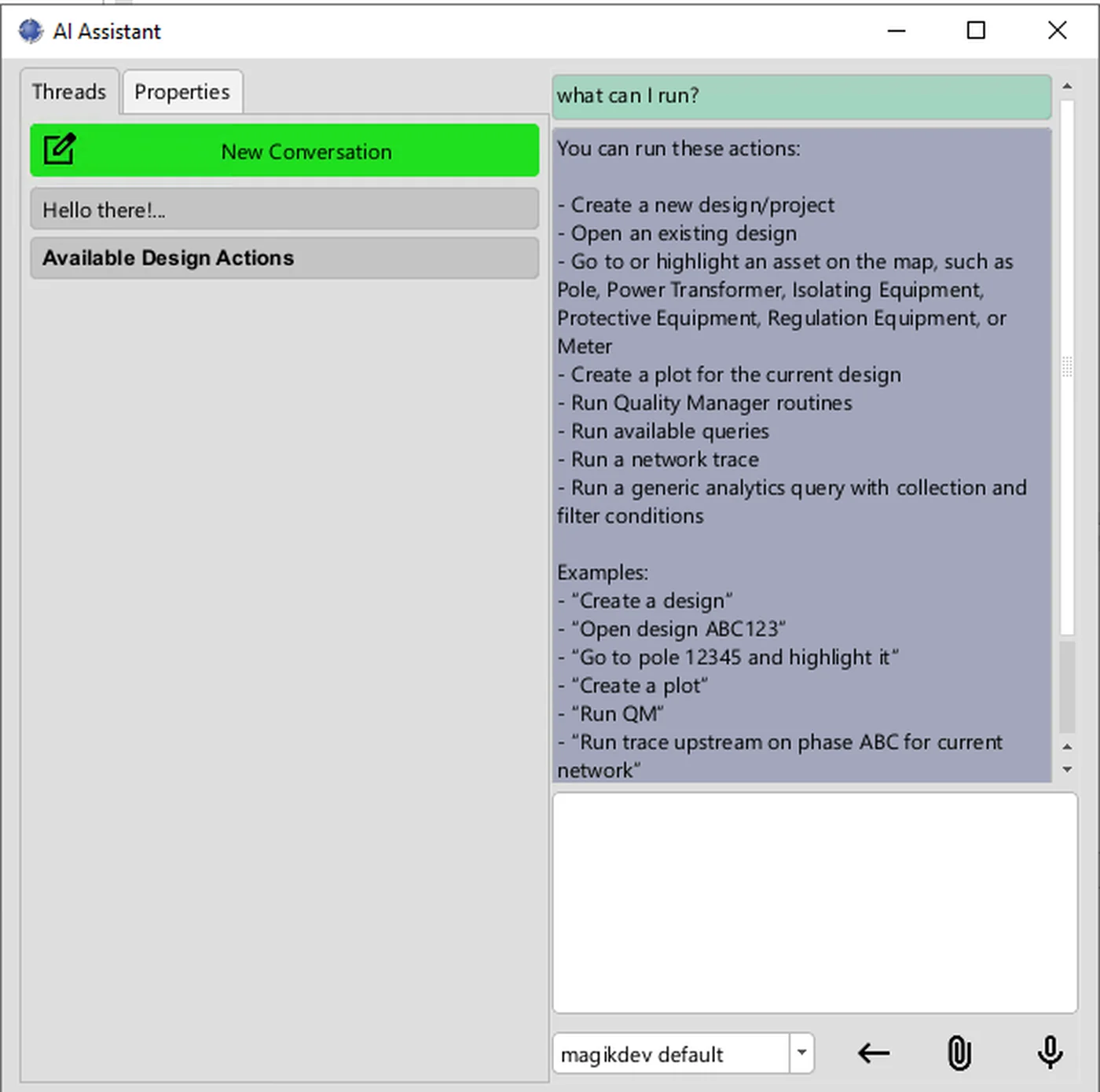
500 poles from a design package
A designer hands the agent the package and asks for the assets to be created. They are created inside Smallworld, and checked against the network, before anything is posted.
Errors caught where they are made
Validation runs while the work is being done rather than in a review cycle weeks later, so the correction happens in front of the person who can explain it.
Third-party data in the design session
Information held in SAP, the maintenance system or another GIS is pulled into the Smallworld environment through Gateway, so the designer is not reconciling two screens.
Each connection is made by API or by a direct database connection, and is defined once rather than per project.
- GE Smallworld
- Direction: Read and write — the agent executes actions inside the GIS
- Connected systems, through Gateway
- Direction: Read, into the Smallworld environment
| System | Direction |
|---|---|
| GE Smallworld | Read and write — the agent executes actions inside the GIS |
| Connected systems, through Gateway | Read, into the Smallworld environment |
Where it stops
- Assistant works inside Smallworld. It does not replace the GIS, and it takes no part in operating the network.
- What it may do is bounded by the rules and the profiles you set. The platform enforces them; it does not decide them.
- Assistant works inside Smallworld without Gateway. Gateway is what brings data from other systems into that session, so you add it when the work needs it.
Who can see what
People sign in with the corporate directory account they already have, and what they are allowed to see is enforced in four places: at the platform, inside each pod, on the map, and in the answers that come back to them.
Where it stands
The screens here are Assistant working inside Electric Office. There is no recorded walkthrough of it published yet — the technical walkthrough covers it, and a session on your own data is the quicker way to judge whether it earns its place.
Two figures, each standing on its own. Both describe what we model the pod to aim at, rather than anything measured in your environment.
Design throughput — The gain we aim for on new design work.
Manual entry errors — Share of manual data-entry errors the pod aims to catch at the source rather than in a later review.
Technical walkthrough · 8 min
See it in action — watch the 8-minute Nexus AI Platform walkthrough.
Recorded directly in the platform, with English narration and no slide deck. GIS, ERP, ADMS, and maintenance answering together, without replacing the systems you already run. The link arrives after you register.
Need to brief your leadership? The one-page brief
A technical session covers your estate, where the platform would run, and which pods come first.
Book a technical session